Conductor runs coding agents like Claude Code and Codex in parallel, each in its own isolated cloud workspace. Conductor for Slack connects Slack's MCP server to those workspaces, so agents can search messages, read channels and threads, send messages, and work with canvases and lists. Everything runs as you, with your Slack permissions.
Connect Slack
- Download Conductor and sign in.
- Open Settings → MCP servers, select Slack, and click Connect.
- Authorize in your browser. Slack shows the permissions you're granting and confirms the connection, and Conductor shows Slack as Connected.
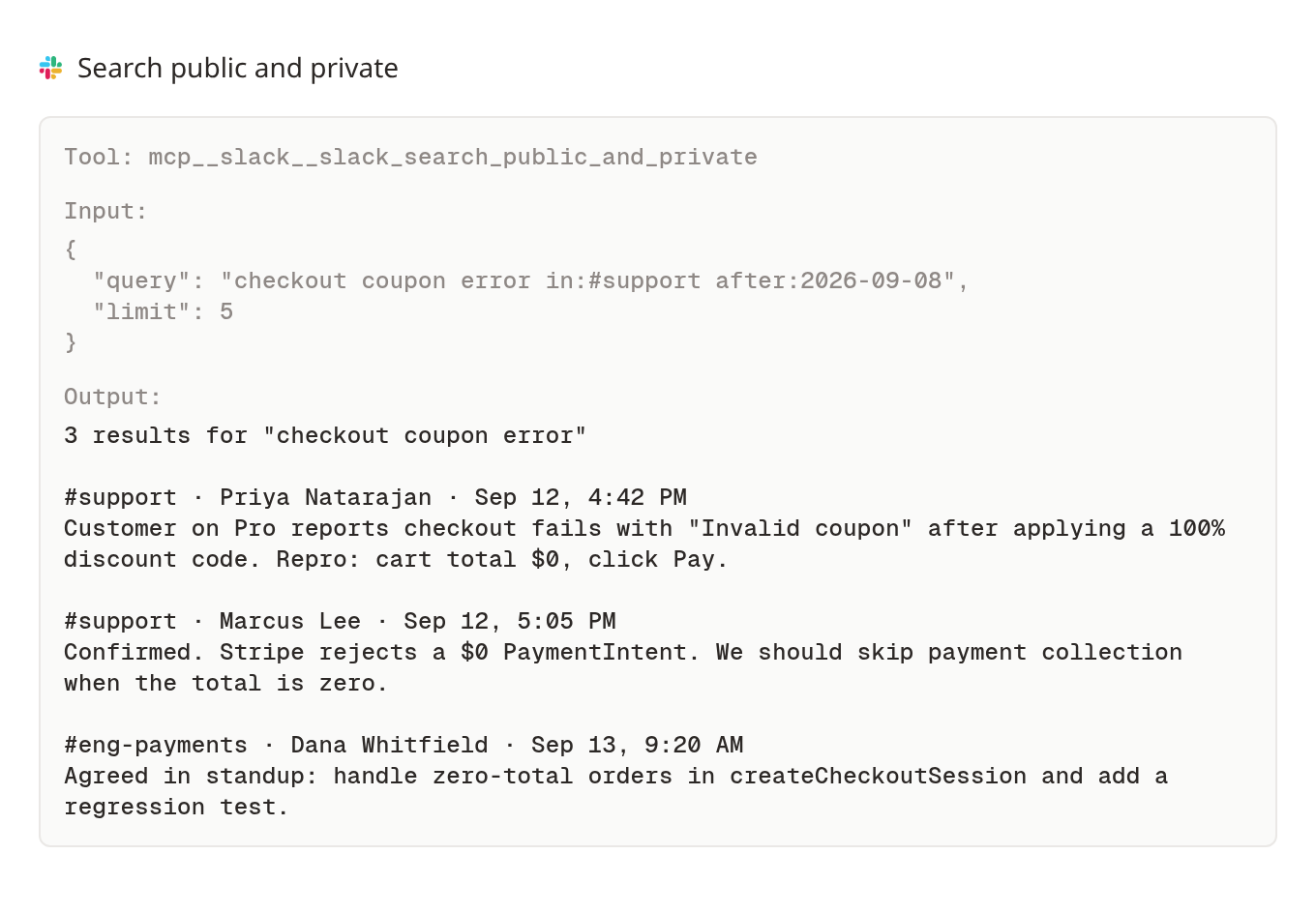
Slack tools are picked up when a cloud workspace starts. Create or restart a cloud workspace, then ask an agent something like "Search Slack for the latest discussion about the checkout bug and summarize it." To disconnect, open Settings → MCP servers.
Privacy and support
Conductor stores your Slack authorization only to make requests on your behalf, and disconnecting revokes it. Chats in cloud workspaces, including anything agents read from Slack, are stored on Conductor's servers. See the Privacy Notice and Terms of Service.
Questions? Email [email protected].