Your first workspace
Import a repository, configure it, and start agent work in an isolated Conductor workspace
A workspace is an isolated copy of your project, backed by Git, for one task or pull request.
This guide walks through the first loop: add a repository, prepare the workspace, give an agent context, and review the result.
Conductor workspaces isolate development state, not system permissions. Agents and commands still run locally with your user permissions.
Add a repository
After you install Conductor, add a repository with one of these options:
- Open project: choose an existing local repository.
- Open GitHub project: choose a repository from GitHub.
- Quick start: create a new repository from Conductor.
Conductor uses GitHub from your terminal environment. To confirm GitHub is
available, run gh auth status in your terminal.
Create the workspace
After you add a repository, Conductor creates a workspace from it.
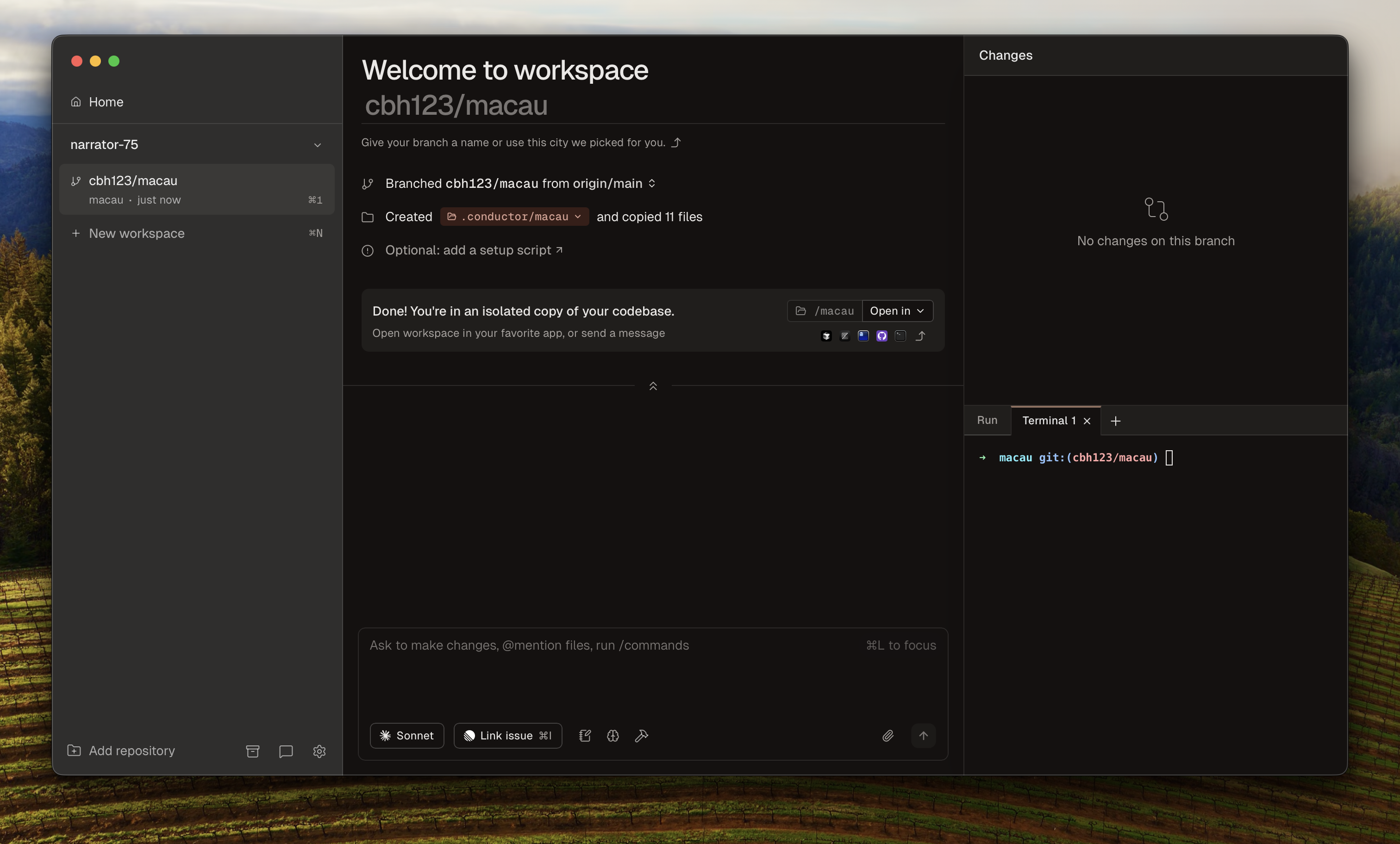
Each workspace has its own:
- Branch.
- Working tree.
- Setup and run context.
Conductor copies files tracked by Git into the workspace. Ignored files, dependencies, local databases, and .env files come from your setup script or your project's setup workflow.
For the underlying model, see Isolated workspaces.
Make it runnable
Before agents change code, make sure the workspace can install dependencies, read local config, and run the project.
Use a setup script for files and dependencies that Git does not track, such as .env files, local databases, generated files, and package installs.
Use an action to launch your app, server, watcher, or tests from Conductor. Actions execute inside the workspace directory and can use CONDUCTOR_PORT, so multiple workspaces can run beside each other.
You can manage setup scripts in Repository Settings and actions on the Actions tab, or share them with your team in .conductor/settings.toml.
Start work
Start a chat with Claude Code, Codex, Cursor, or OpenCode in Conductor. For a simple task, use one agent in one workspace.
Before you ask for changes, attach the context the agent needs:
- Mention files, folders, or comments from the composer.
- Attach notes, specs, screenshots, and logs.
- Put uncommitted handoffs in
.context.
Use the Run button for saved commands and the terminal for ad hoc commands. Commands run inside the workspace, not your original checkout. If your app cannot run cleanly from a workspace directory, use Spotlight testing.
Split work deliberately
Use multiple agents in the same workspace when they should share the same branch and code state, such as one agent implementing while another reviews or fixes tests. Use separate workspaces when tasks should move independently and become separate pull requests.
Create more workspaces with Command Shift N or the ... button next to New workspace. You can start from a branch, pull request, GitHub issue, or Linear issue.
Review, merge, and archive
When the workspace is ready:
- Open the Diff Viewer with Command Shift D.
- Run tests through the terminal, Run button, or Spotlight testing.
- Open the Checks tab to review git status, CI, deployments, comments, and todos.
- Create a pull request, merge when ready, and archive the workspace.
Next, configure your project, learn the full Conductor workflow, and decide how to use parallel agents.